
Running a Profit & Loss Statement in QuickBooks Online
Objective 🎯
This SOP outlines the steps to run a profit and loss statement in QuickBooks Online and how to drill down into account balances for detailed transaction views.
See in Action 📽️
Key Steps ✅
1. Accessing the Report Center 0:25
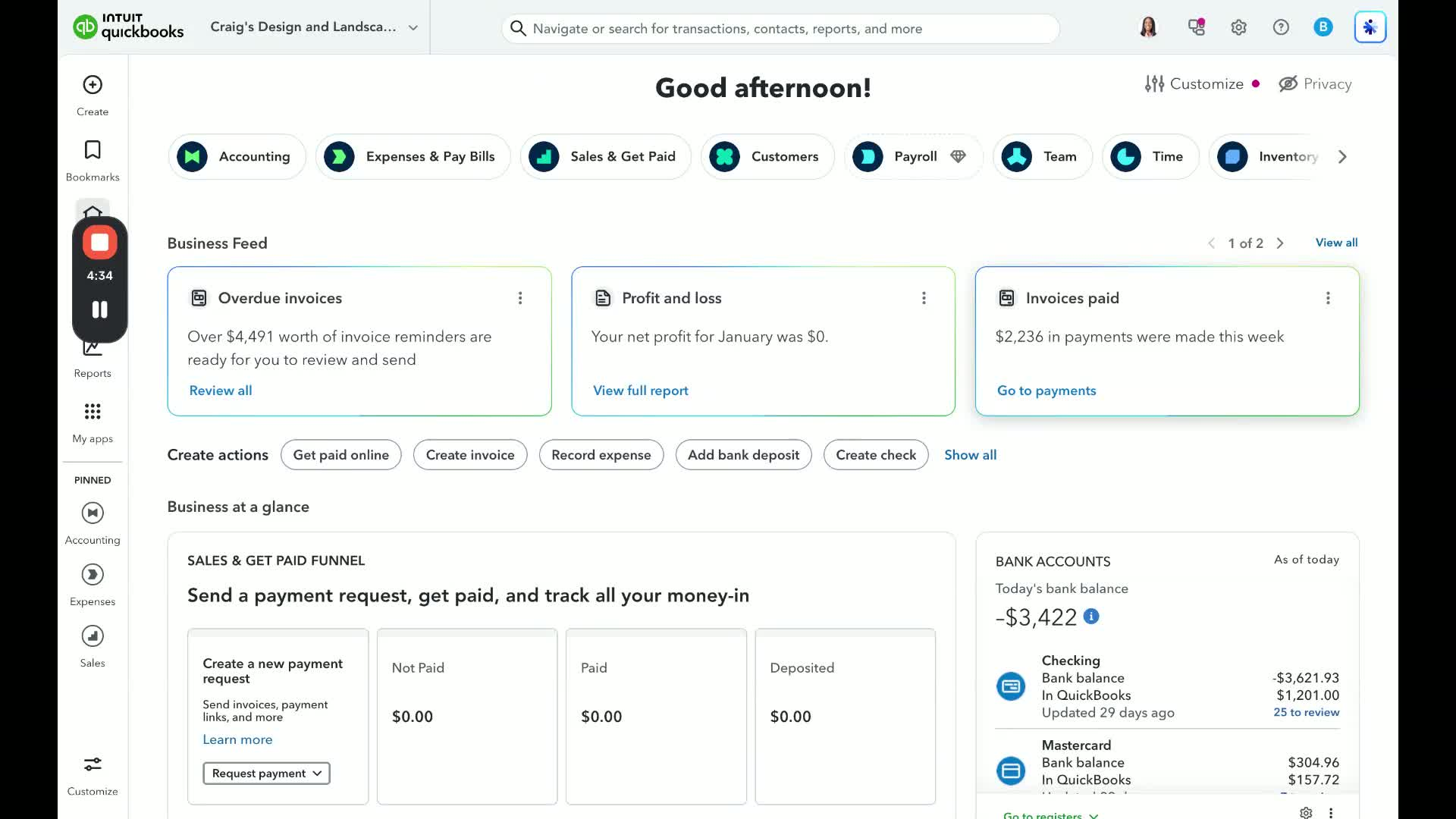
Navigate to the Report Center on the left side of the QuickBooks Online interface.
Click on 'Reports' to access the reporting options.
2. Finding the Profit and Loss Statement 0:35
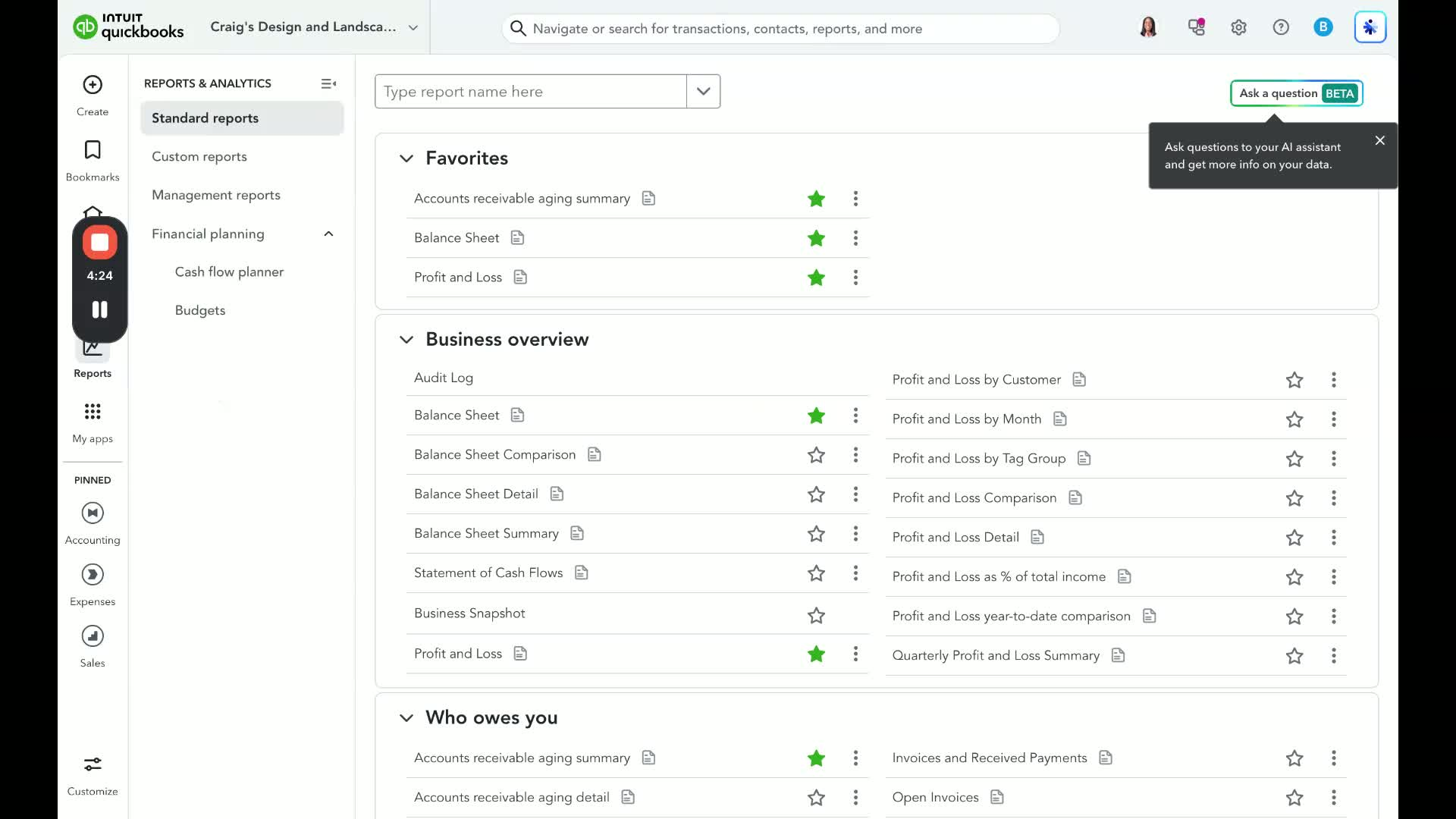
If you have bookmarked the Profit and Loss statement, click on it directly.
Alternatively, find it under 'Business Overview' at the bottom of the Reports section.
You can also use the report search feature by typing 'profit' to locate the Profit and Loss statement.
3. Setting the Reporting Period 1:09
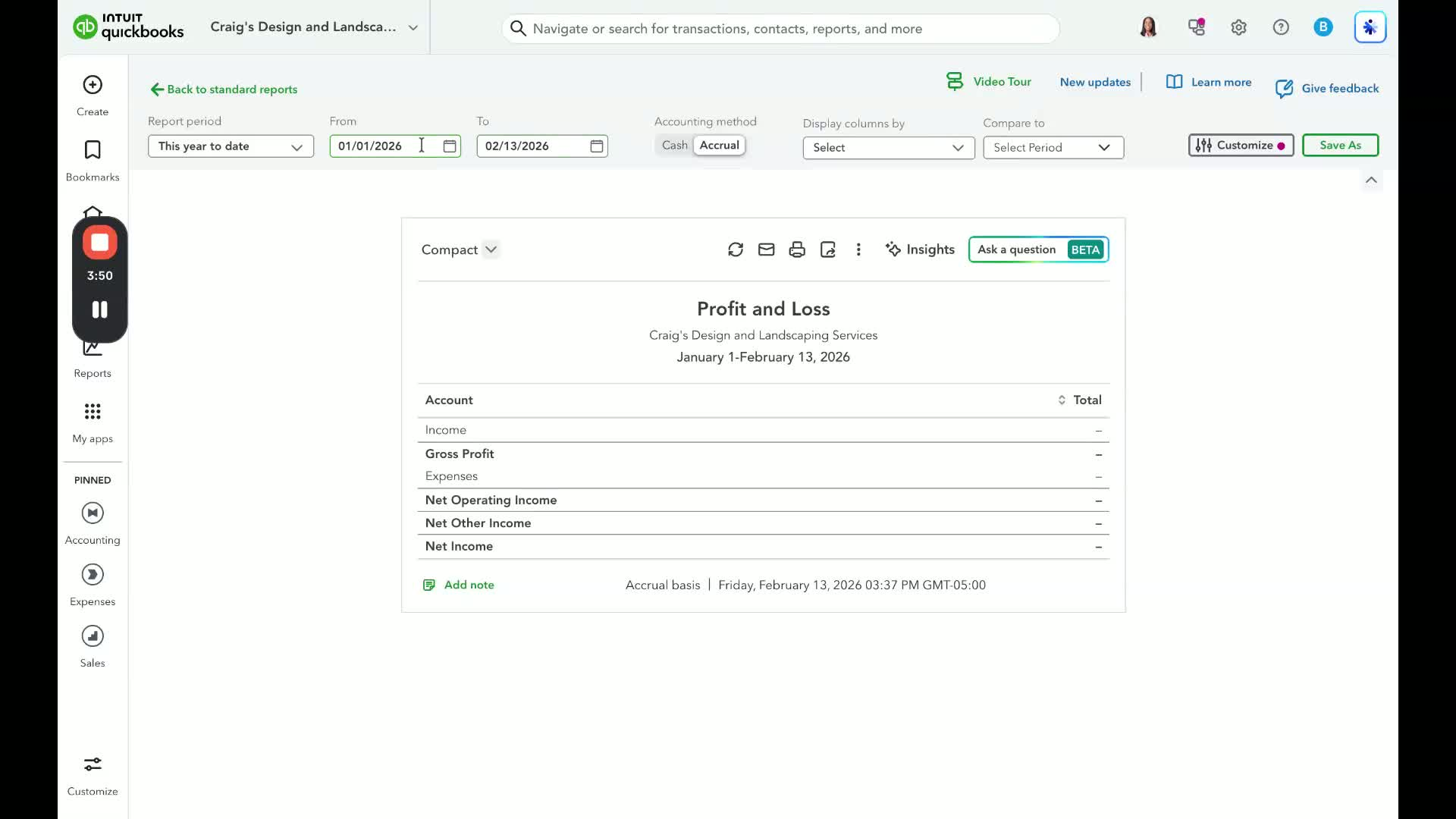
Change the reporting period to one that contains relevant data for analysis.
4. Viewing the Profit and Loss Statement 1:21
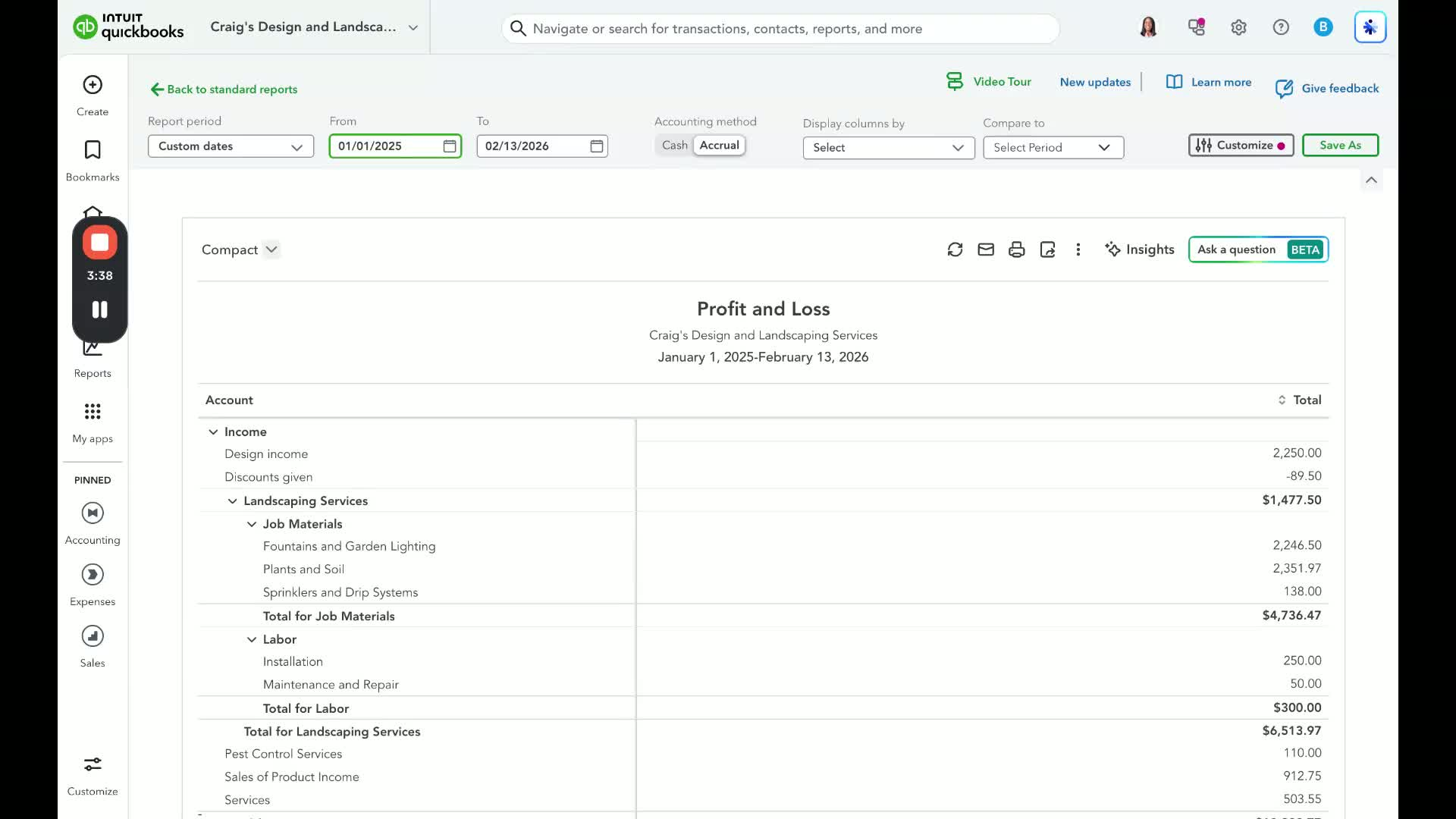
Review the standard Profit and Loss statement which displays all accounts with balances.
5. Compacting the View (Optional) 1:36
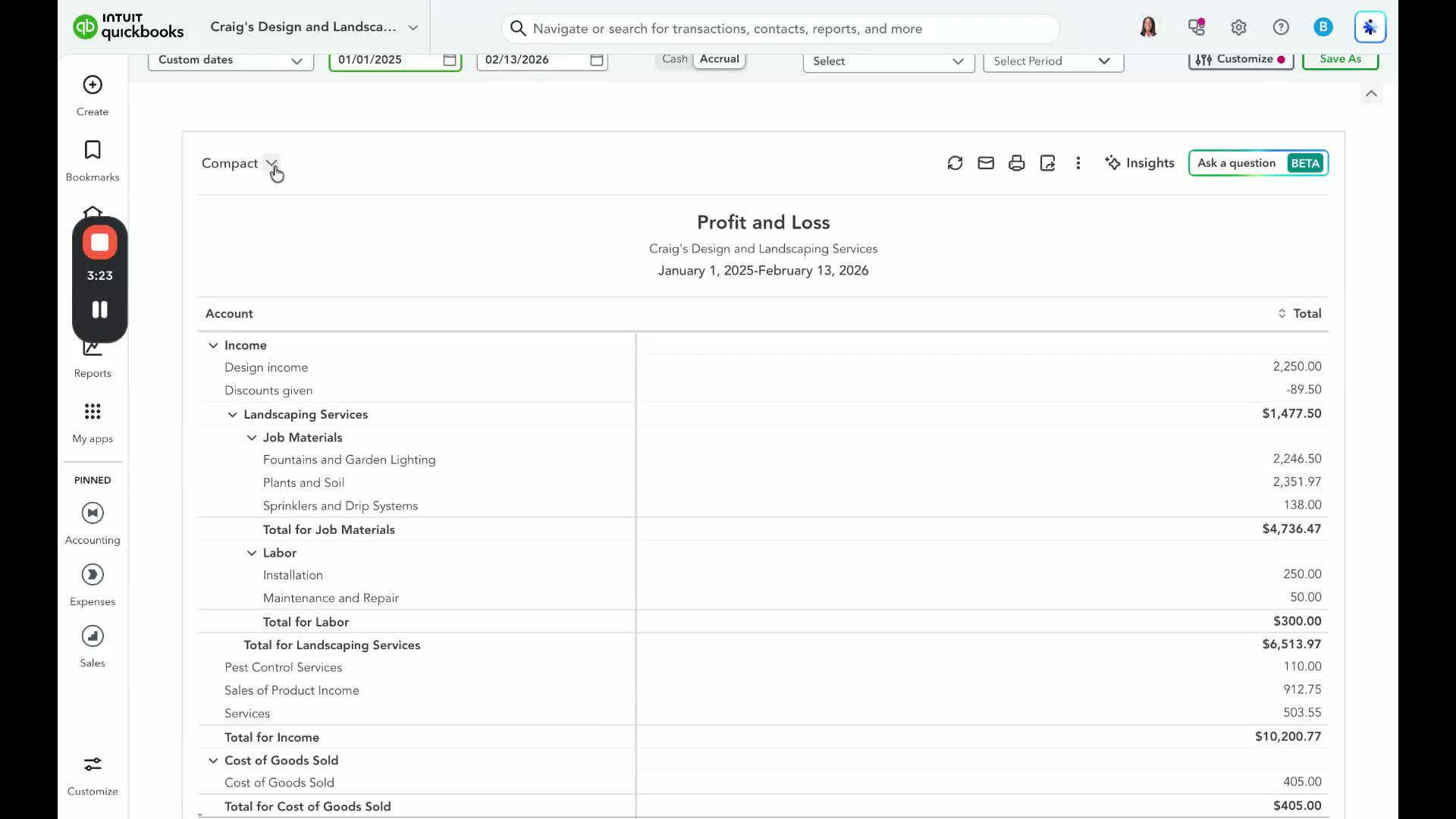
Use the dropdown tool next to 'Compact' to collapse all accounts for a quick overview.
6. Expanding the View 1:49
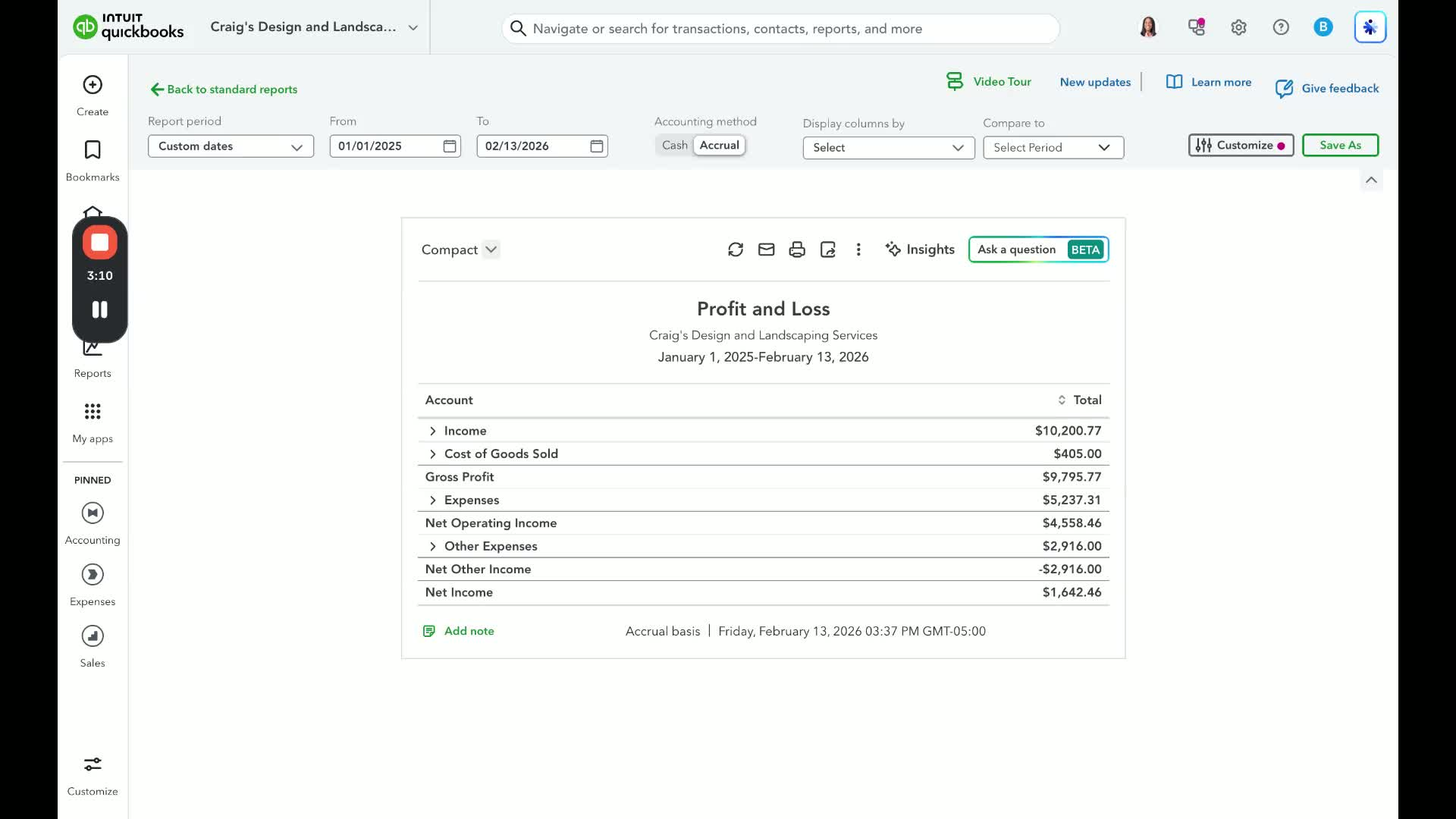
Expand the view again to see detailed account balances.
7. Drilling Down into an Account Balance 1:59
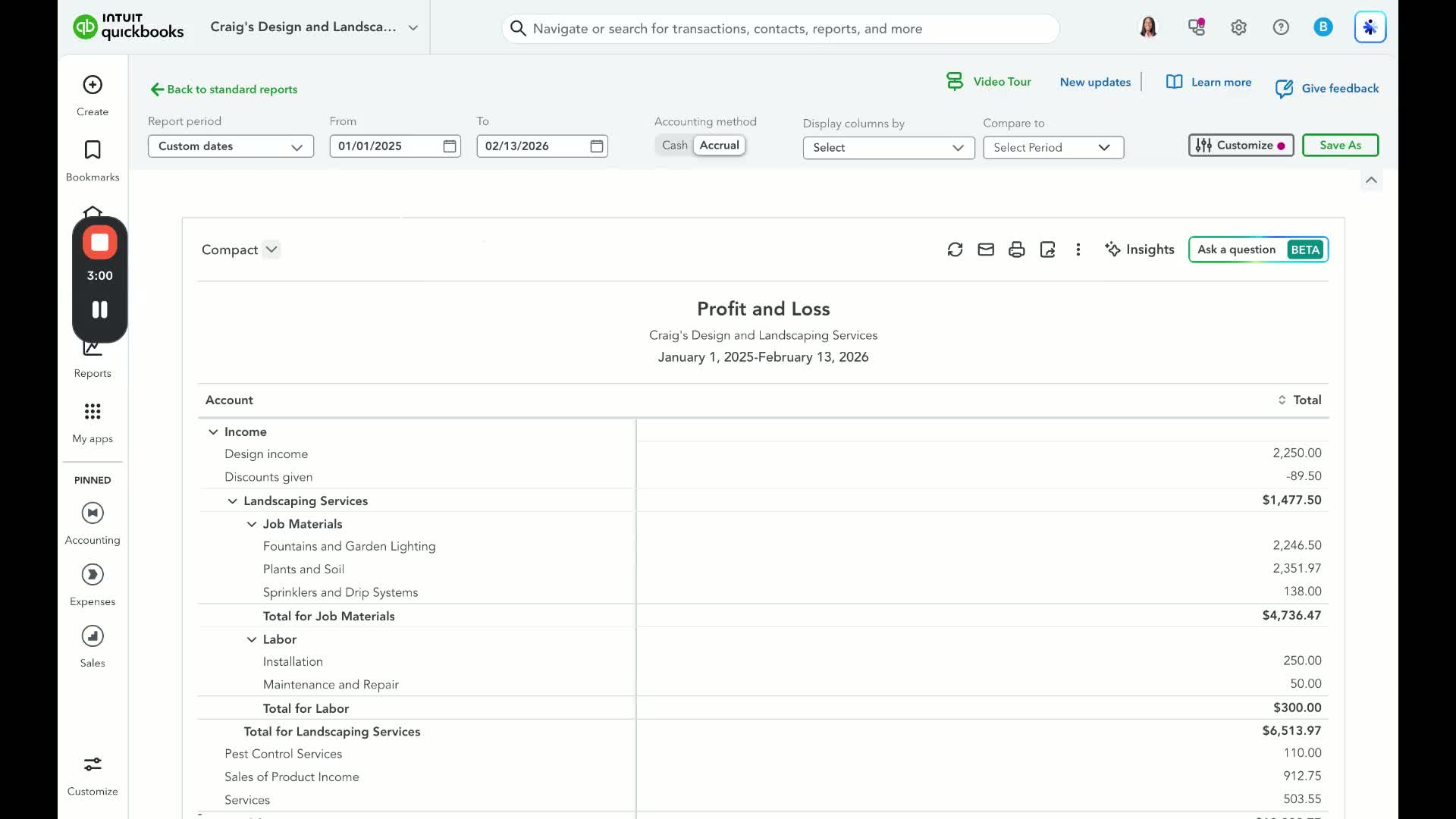
Identify an account balance you want to investigate (e.g., design income).
Hover over the amount to see it underlined, indicating it is a hyperlink.
8. Accessing Detailed Transactions 2:28
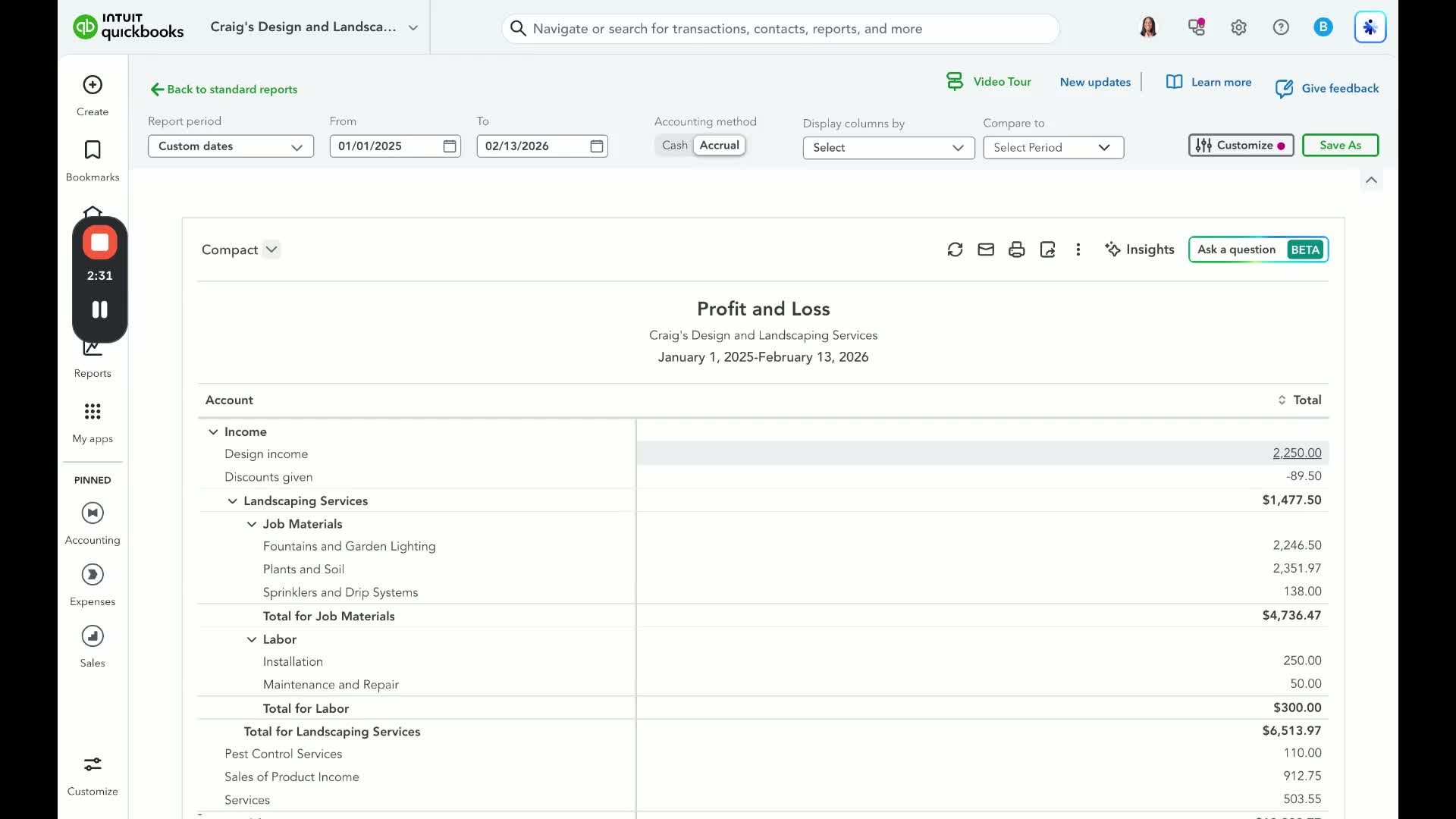
Click on the underlined amount to view the detailed transactions that make up that balance.
9. Navigating to Transaction Details 3:00
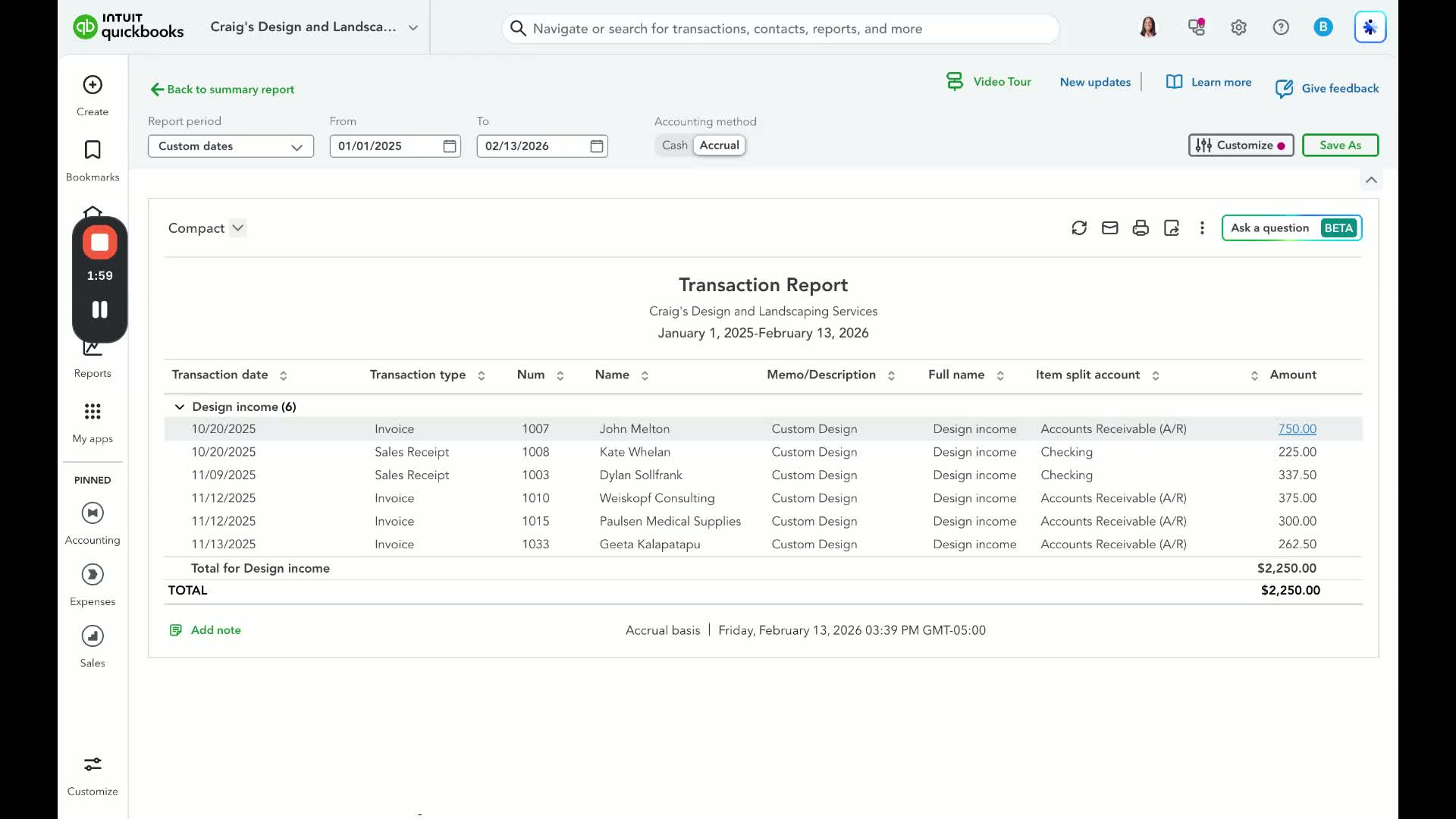
Click on any underlined transaction to view its details (e.g., invoice).
10. Returning to the Report 3:24
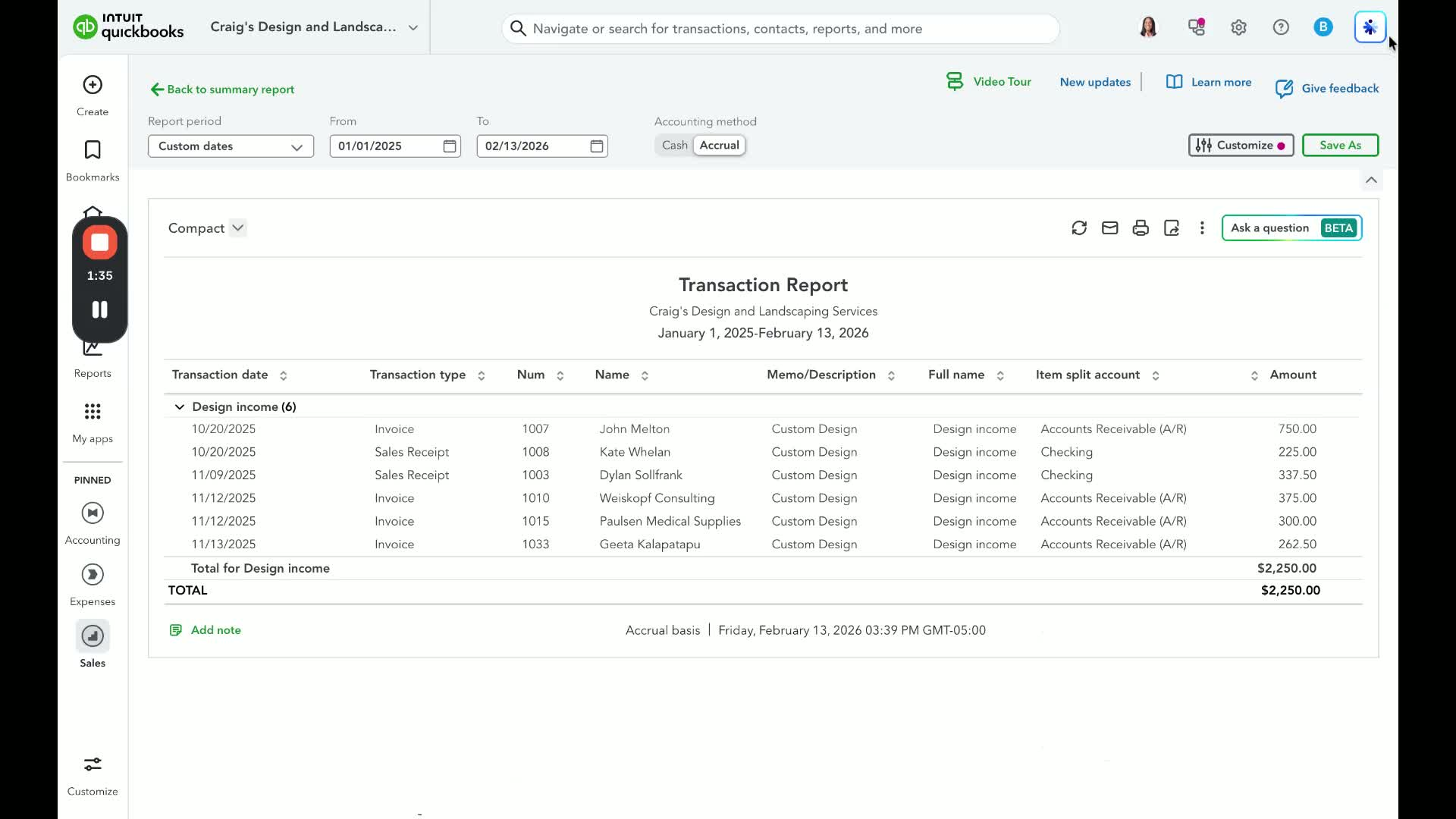
To return to the detailed report, click the 'X' to exit the transaction view.
11. Going Back to the Summary Report 3:32
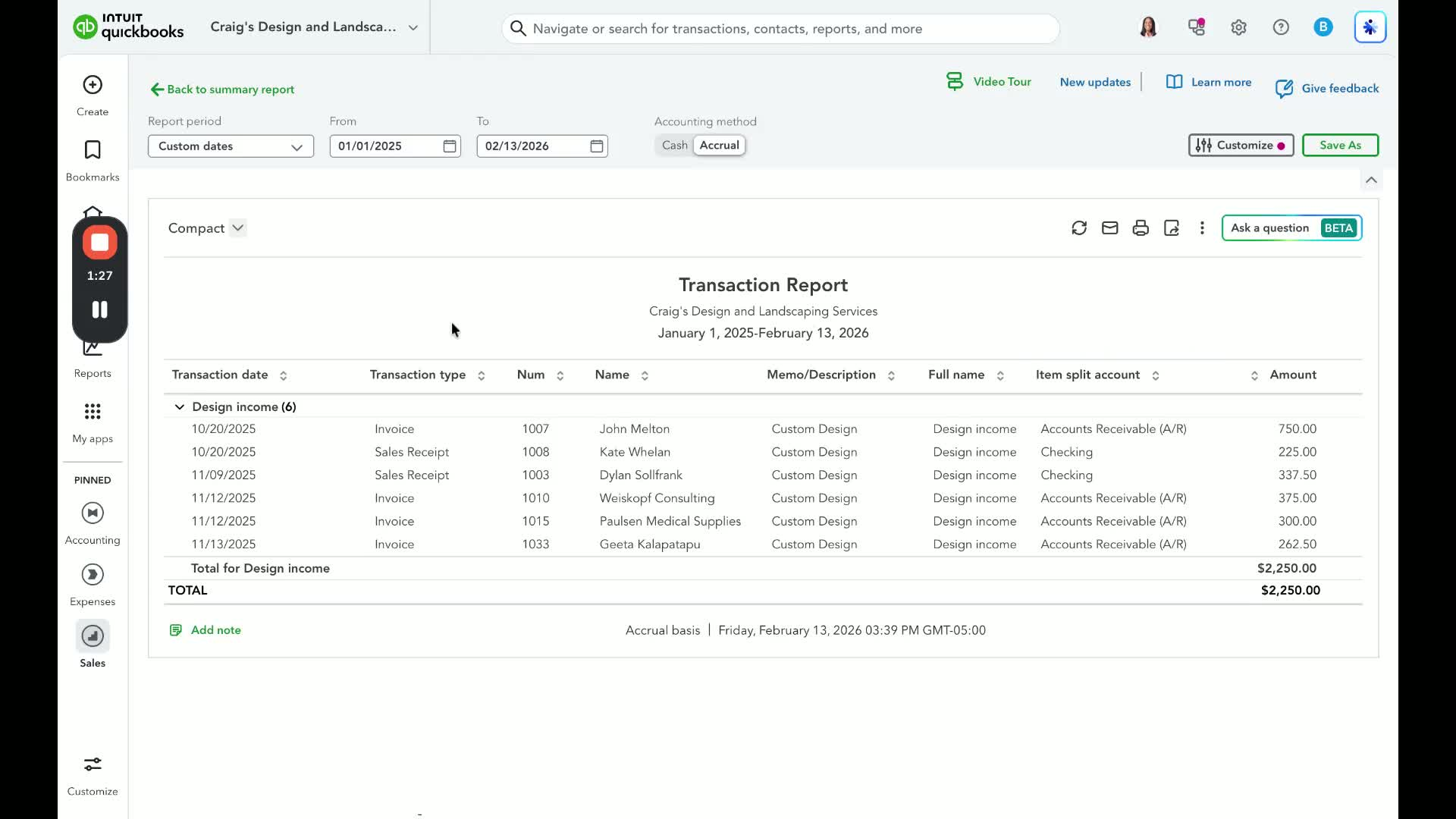
Click on the 'Back to Summary Report' hyperlink at the top left to return to the Profit and Loss summary.
Cautionary Notes ⚠️
Ensure you are logged into the correct QuickBooks Online account before starting.
Double-check the reporting period to ensure it contains the necessary data for analysis.
Tips for Efficiency 💡
Bookmark frequently used reports for quicker access in the future.
Use the report search feature to save time when looking for specific reports.