
Client Onboarding - Client Portal Registration
Welcome to Finalytics! We are thrilled to begin our partnership with you. At Finalytics, your confidentiality is our utmost priority. To ensure the secure exchange of documents, financial data, and personally identifiable information (PII), we utilize an encrypted client portal. By using our designated platforms as intended, you play a crucial role in helping us safeguard your information.
Are you ready to complete your first onboarding task? Let’s proceed with the client portal registration process outlined below.
Creating an Account
Email filters may sometimes send our notifications to your spam or social inbox. We highly recommend adding the following email address to your Safe Senders list to ensure you don't miss any alerts from your advisory team.
notifications@finalytics.clientportal.com, notifications@frontapp.com, help@wearefinalytics.com
Now that you've updated your email filter, you should see an email invitation from your lead advisor. (See example below) Open the invite to the client portal email and select the 'Create account' button to be redirected to the self-registration page.

Enter your legal name and create a unique password that is at least 15-20 characters long. Your advisor can update your preferred name so it appears in the client portal after your registration is completed.
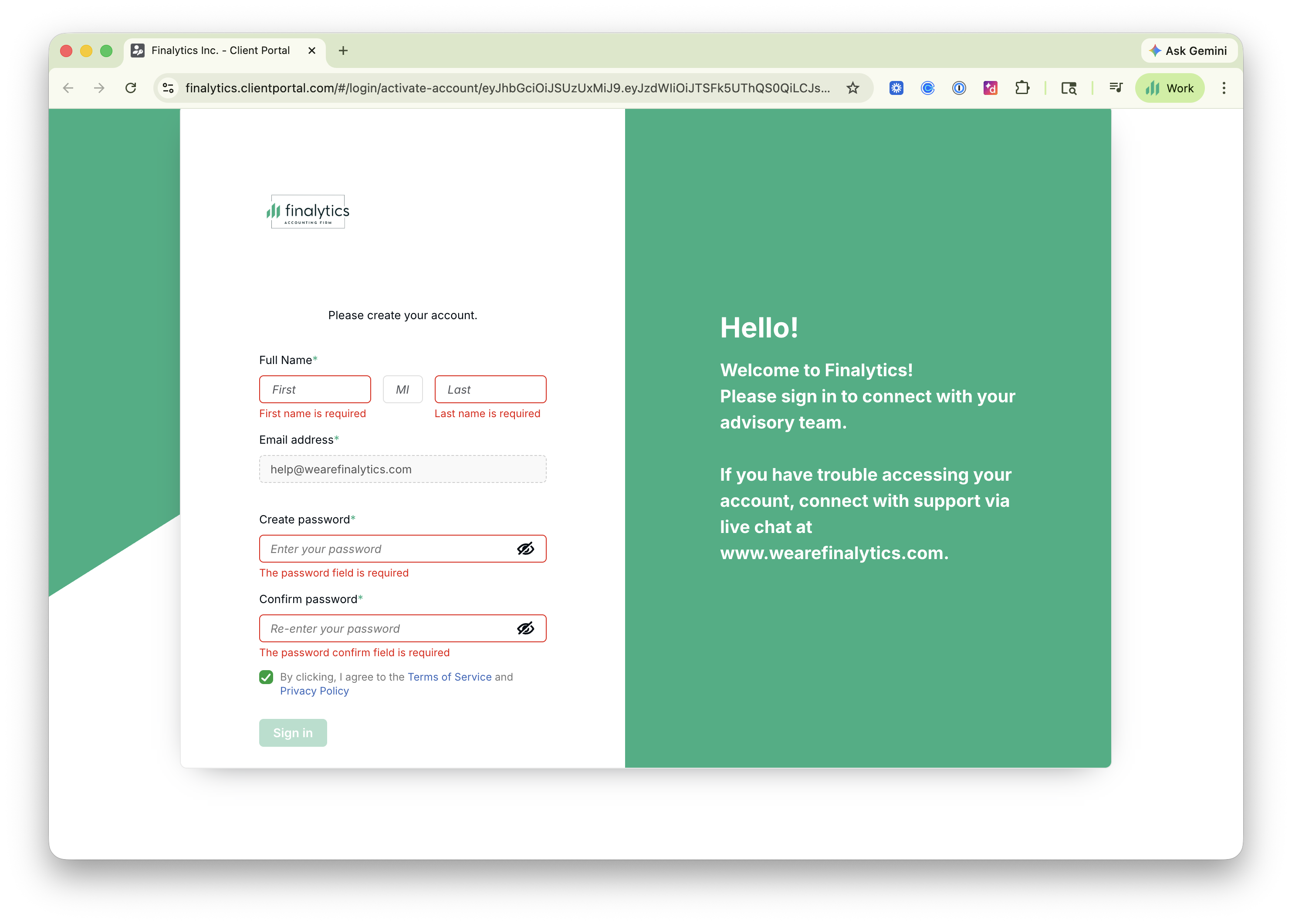
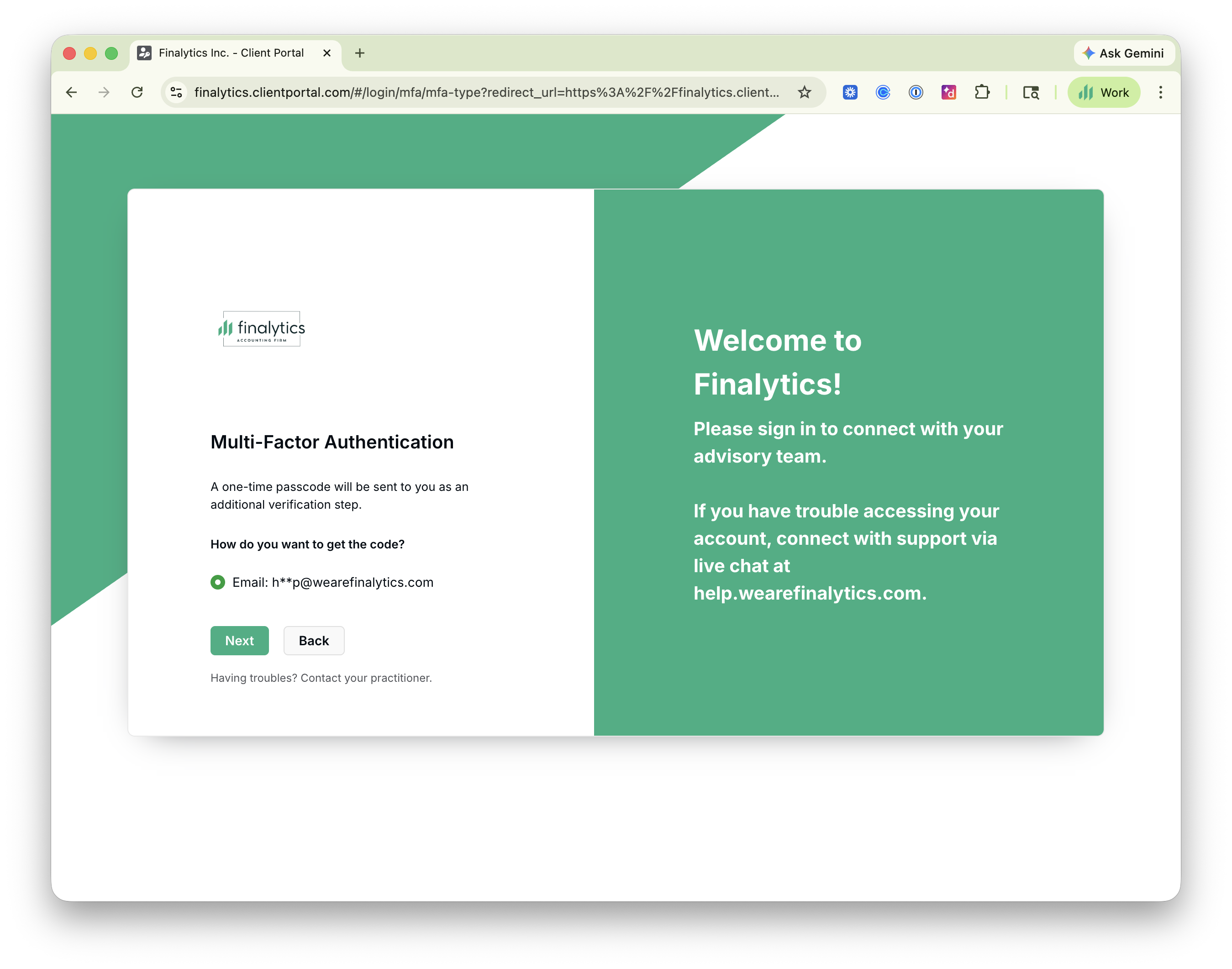
We enforce multi-factor authentication (MFA) for login.
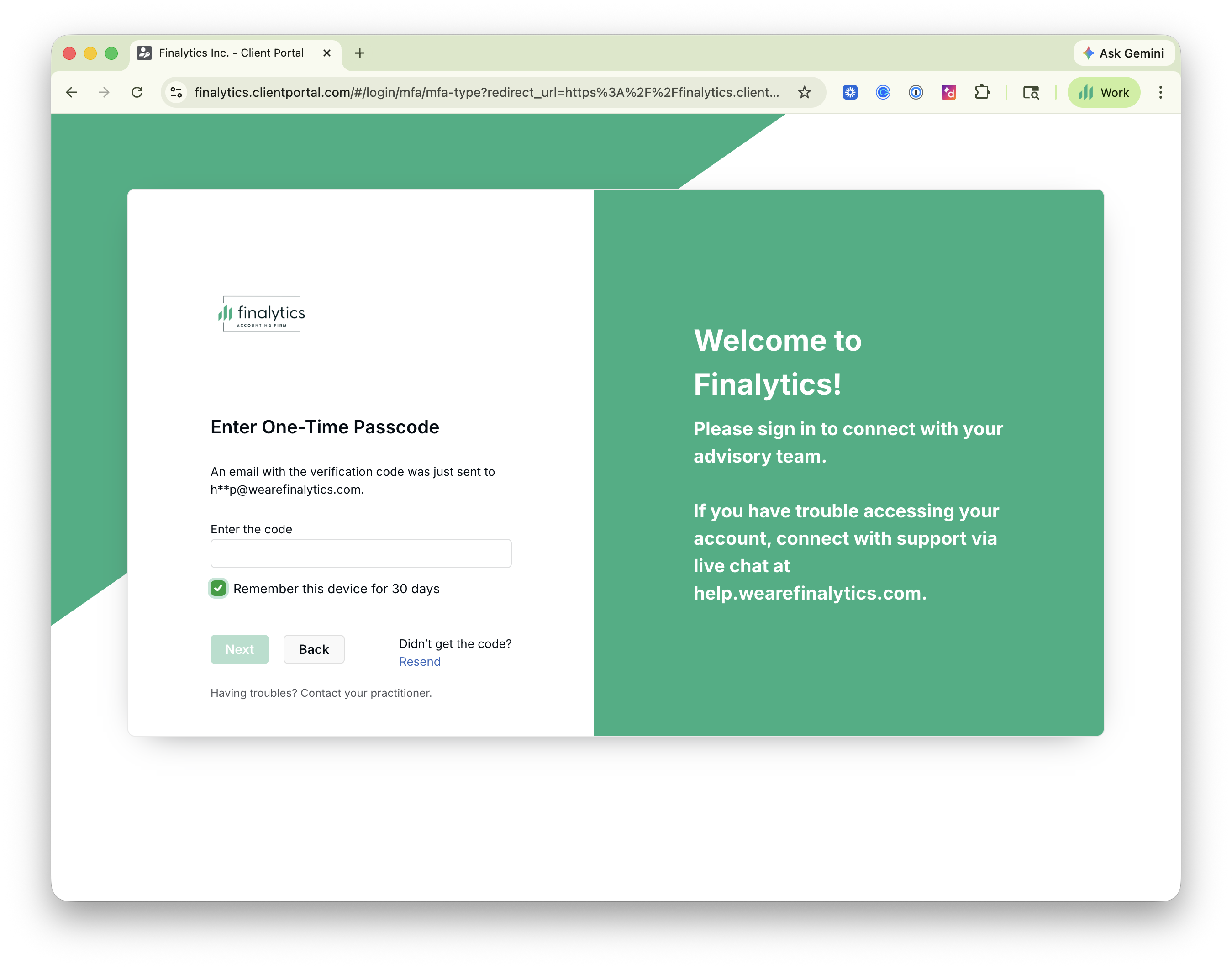
By selecting the checkbox to "Remember this device for 30 days," you will not be prompted to complete MFA during your next login sessions from that device. Please leave this option unselected if you are accessing the client portal from a shared or public device.
Next, you may choose your primary MFA method: SMS/text or an authenticator app. Follow the remaining prompts until you are logged in and on the home page.
Quick Navigation
Once you are logged in to our client portal desktop or mobile app, you'll have the following menu options.
Home - Here you will have an overview of your outstanding balance for open invoices, tasks & forms we need you to complete, and recent file uploads.
To-do - Tasks, document requests, questionnaires, and engagement letters that are awaiting action on your end.
Files - Unlimited document storage organized in folders where you can upload or download files.
Billing - View open & paid invoices
Additional Resources
User Settings - Update your name, email address, phone number, time zone, and two-factor authentication method.
Payment Settings - Manage your saved bank account and credit/debit cards on file.
Schedule an appointment - Will redirect you to our Calendly booking page.
Customer Support - Access our public knowledge base and open a support case as needed.