
Square POS | Modifying Sales Tax Rates
If you're using Square Point-of-Sales and are unsure how to update a change to your sales tax rate due to inflation, or no longer operate in a jurisdiction you previously collected sales taxes in, this article is for you. Below, we'll show you how to modify, deactivate, and delete a sales tax rate in Square POS for in-person sales.
Log in to your Square account at https://app.squareup.com or the mobile app.
Go to Settings > Payments > Sales taxes
Click the tax rate you want to update.
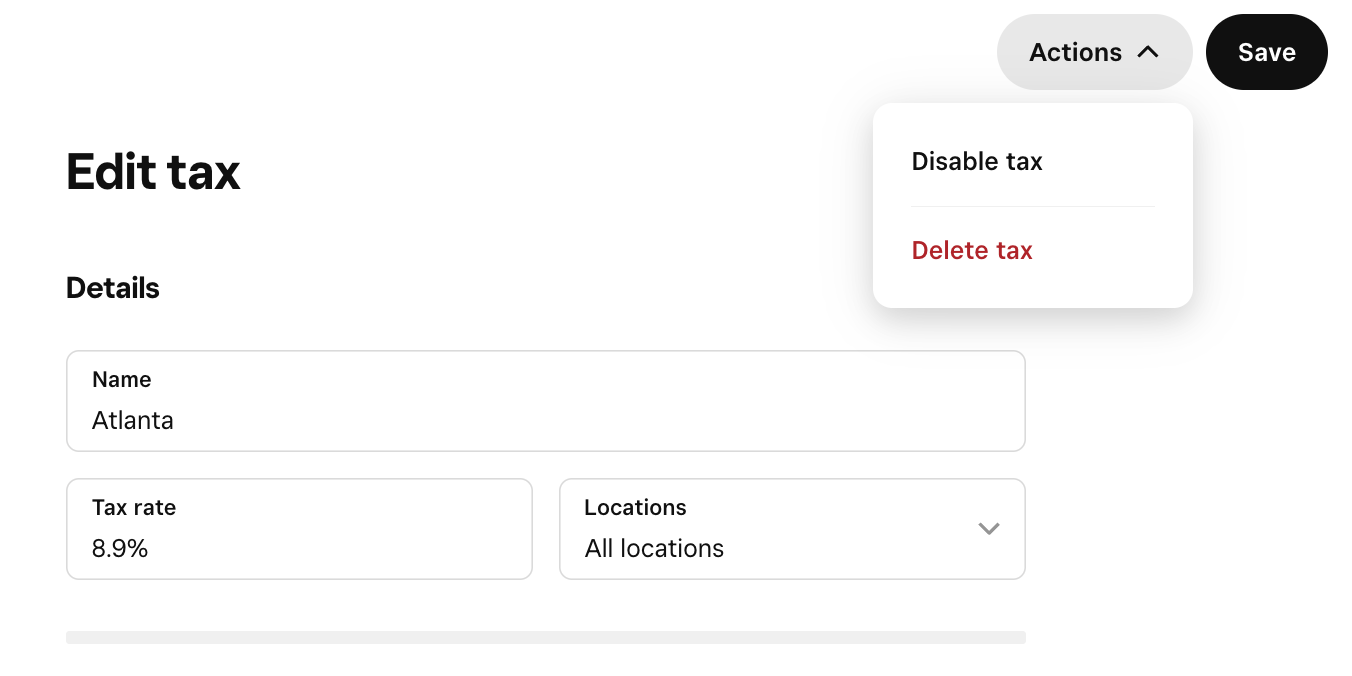
Modify the tax rate - Enter the new combined sales tax rate in the Tax rate field.
Deactivate the tax rate - Click the Actions button, then select Disable tax.
Delete the tax rate - Click the Actions button, then select Delete tax.
Don't forget to select Save to enable your changes.
Voila - You just mastered sales tax management in Square POS! 🥳