
Square POS | Creating Sales Tax Rates
In this quick guide, we will walk you through how to set your default sales tax rates using the Square Point-of-Sales system.
Log in to your Square account at https://app.squareup.com or use the mobile app.
From the navigation menu, go to Settings.
Click on the Payments section to expand your options, then choose Sales taxes.
Depending on your Square subscription type or add-ons, you'll have options for the following in the Sales taxes settings module.
In-person sales taxes
Tax enrollments
Online delivery and pickup tax overrides
Delivery sales tax
QR code sales
Pickup
Shipping & non-physical tax overrides
Domestic shipping and non-physical sales taxes
International shipping & non-physical taxes
The following steps address adding new sales taxes for in-person sales.
Click on the Create tax button.
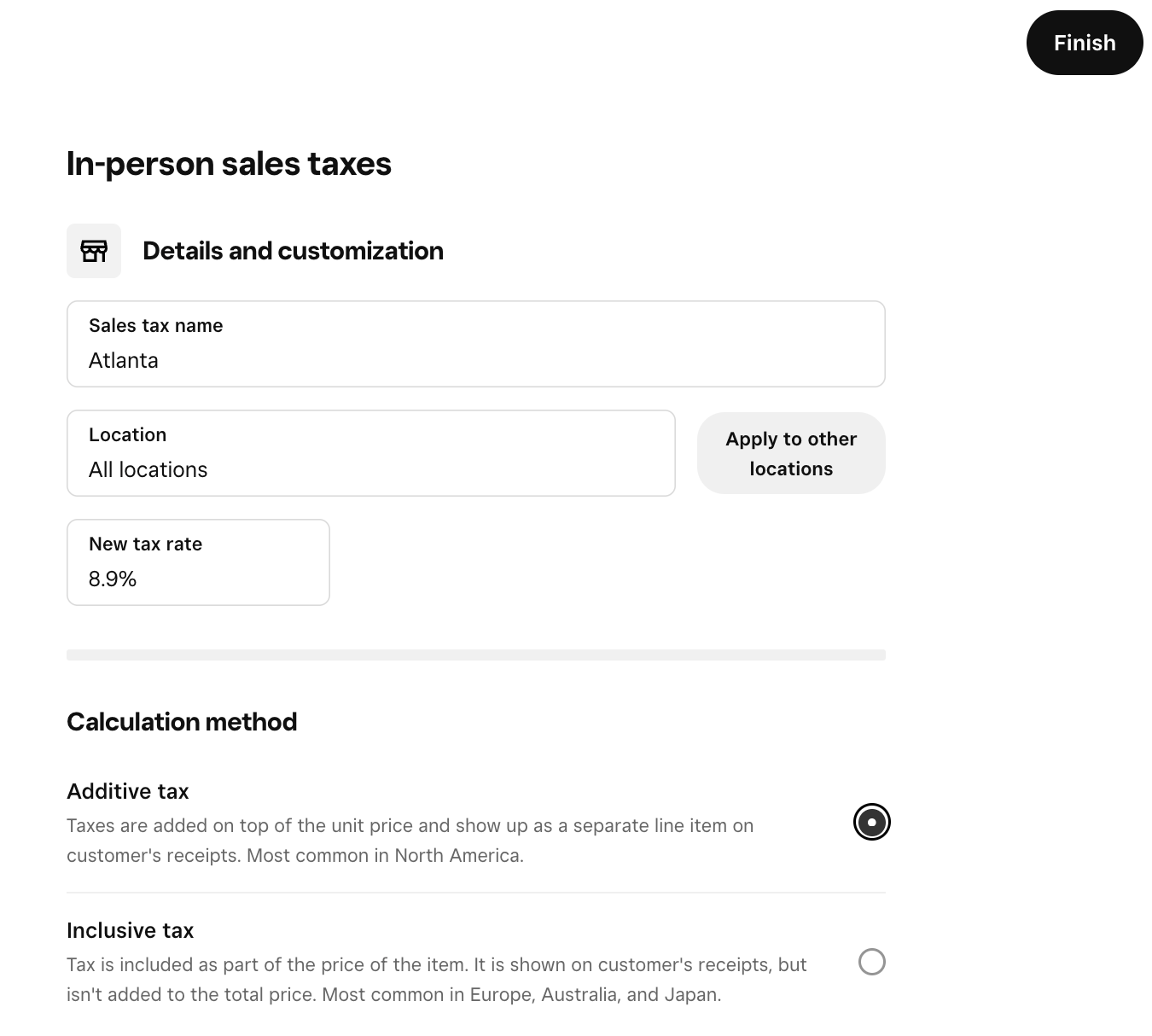
Enter the following tax details:
Sales tax name - Use the jurisdiction name
Tax rate - Use the combined tax rate for the jurisdiction
Locations - Defaults to all locations, but may be changed.
Apply tax to - Defaults to all current and future taxable items at selected locations, but may be changed.
Apply tax to custom amounts - Enabled by default, but may be changed.
Service charges
Tax calculation method
Additive tax - Tax is applied to the unit price as a separate line item on receipts.
Inclusive tax - Tax is included as part of the unit price of each line item on receipts.
Exemptions - Create a rule for when a tax exemption should apply to a sale.
Congratulations! 🥳 You've successfully created sales tax rates for in-person sales on Square.